How to add image carousels to a custom page
Image carousels can cycle through the images in the record, and the images can be embedded with links or other explanatory text. It is often used for exhibitions and publicity. As shown in the image below, you can view colleagues who have been newly joined in the last 30 days:

Entrance
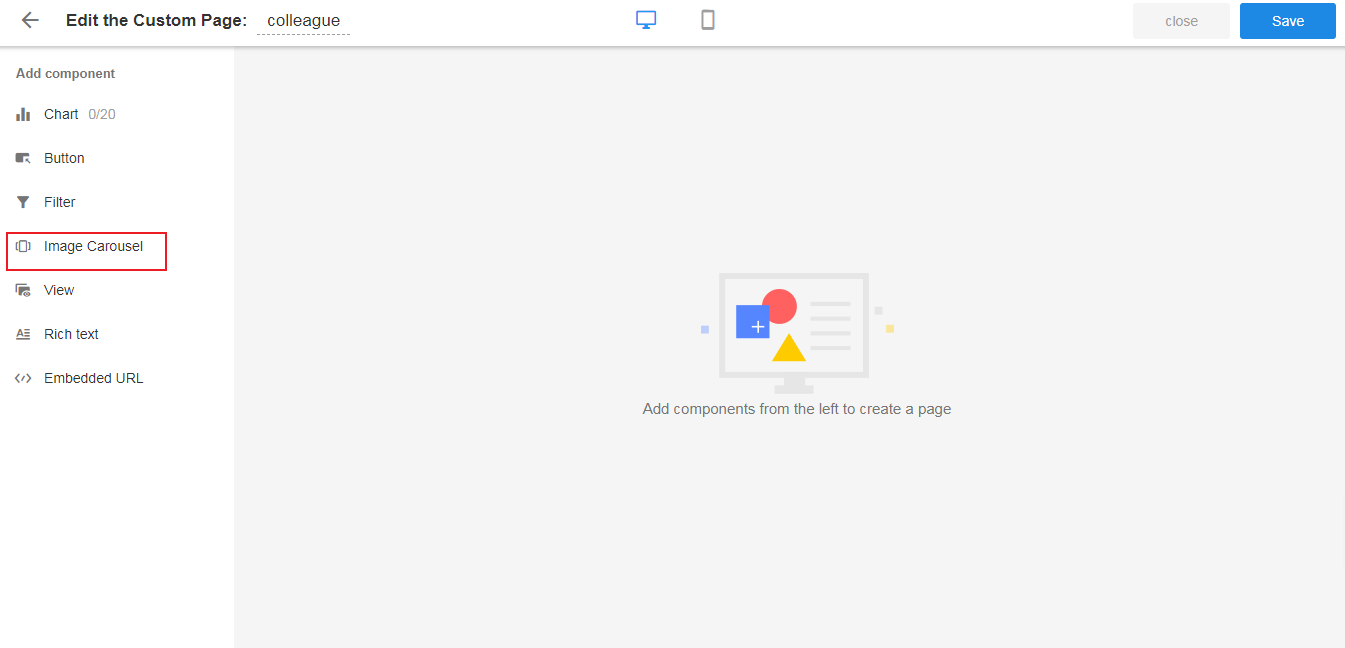
In the custom page, select [Image Carousel].
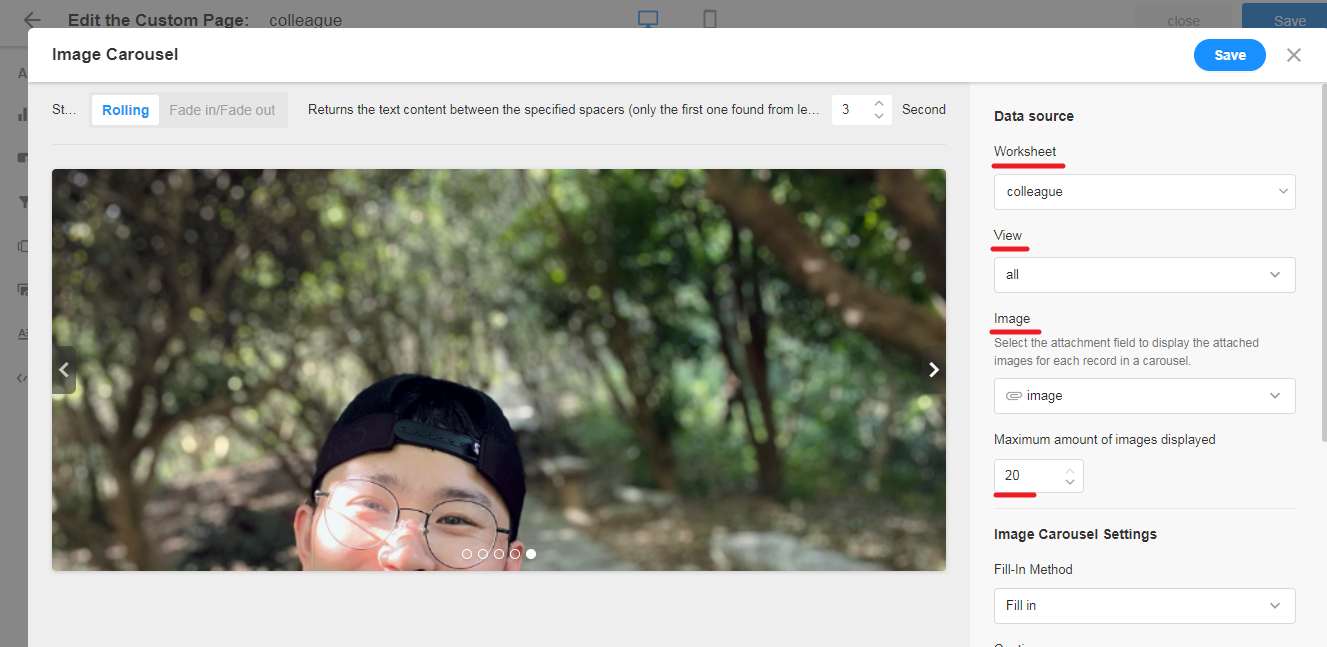
Select the data source
Select the target sheet, view, and attachment fields of the images.
Maximum amount of images displayed It is the maximum number of images to be displayed. For example, if you set the maximum number of images to be displayed is 5, if 5 images are uploaded in the 1st record, then the images in the later records will not be displayed.
Display settings
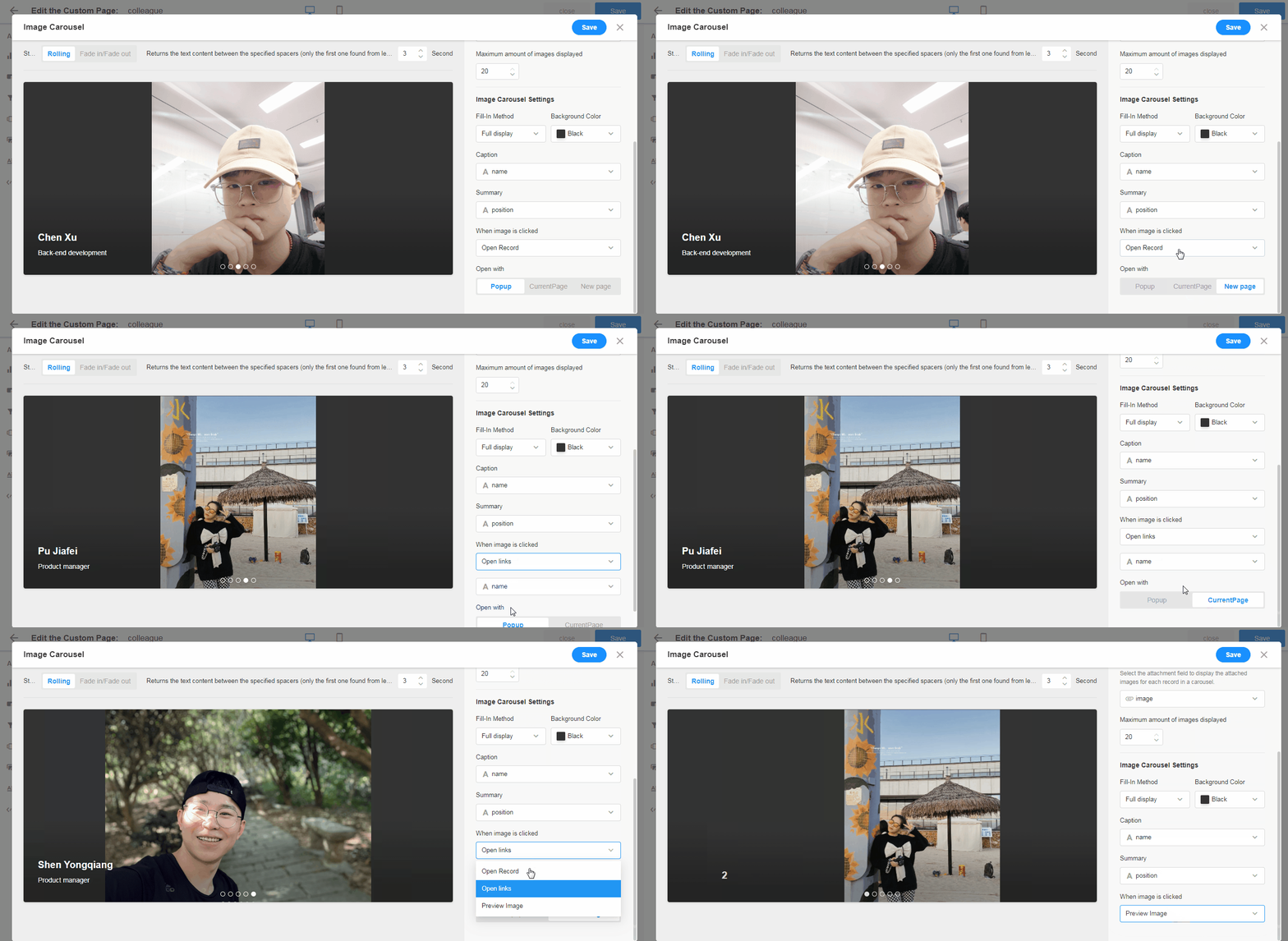
Here you set the display effect of the images, such as the fill-in method, the background color, the title and description of the image.
The title and description can only be selected from the text fields.

When clicking on the image
There are 3 options:
Open record
You can choose to open the record in a pop-up window, on the current page, or on a new page.
Open link
You can choose to open the record in a pop-up window or on the current page.
For attachments, only text type fields can be selected, and links to external pages can be stored in the text fields.
Preview image
Click to enlarge and preview the image.
Name/Resize
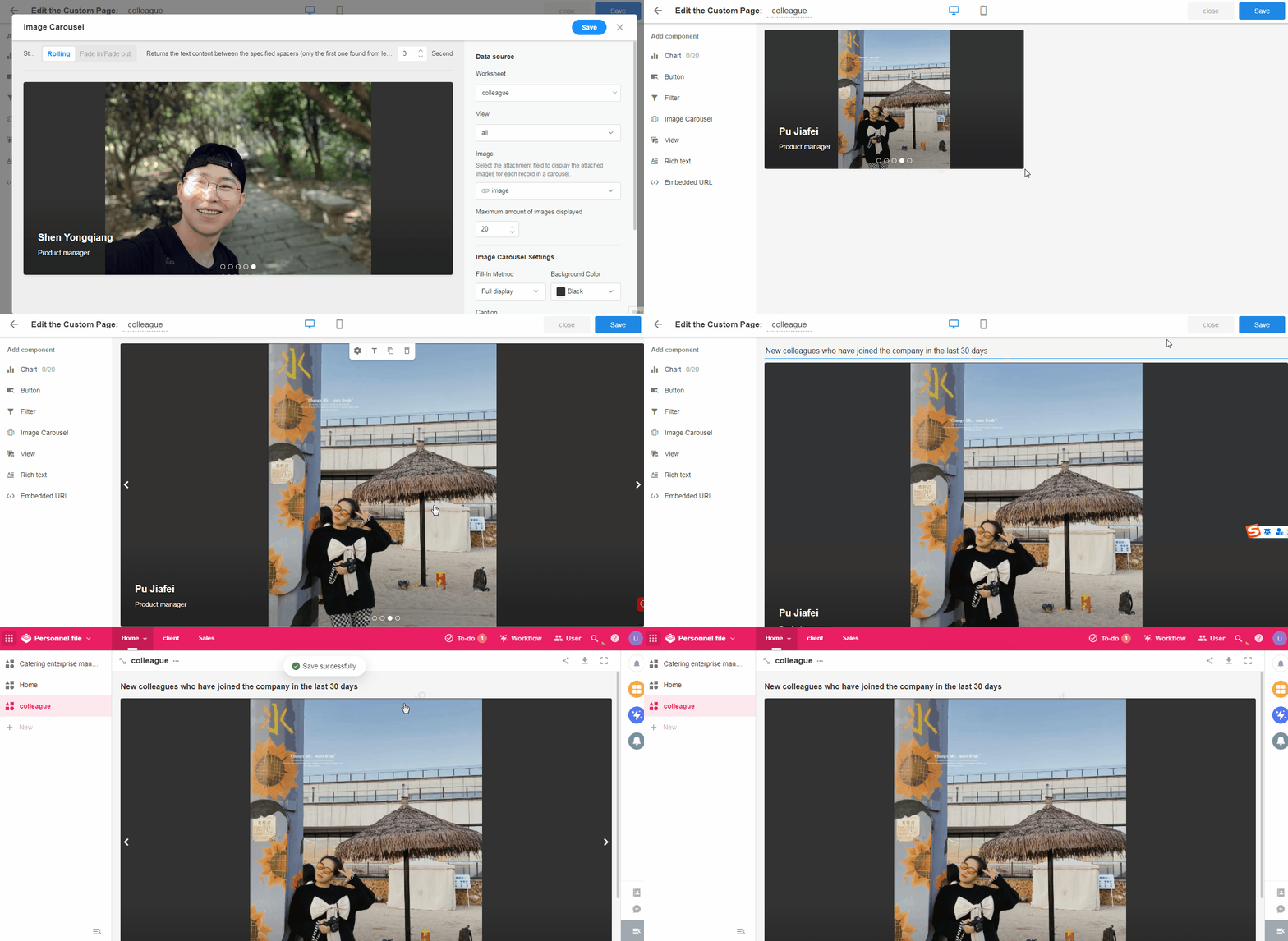
After saving, you can resize and name it.
Have questions about this article? Send us feedback